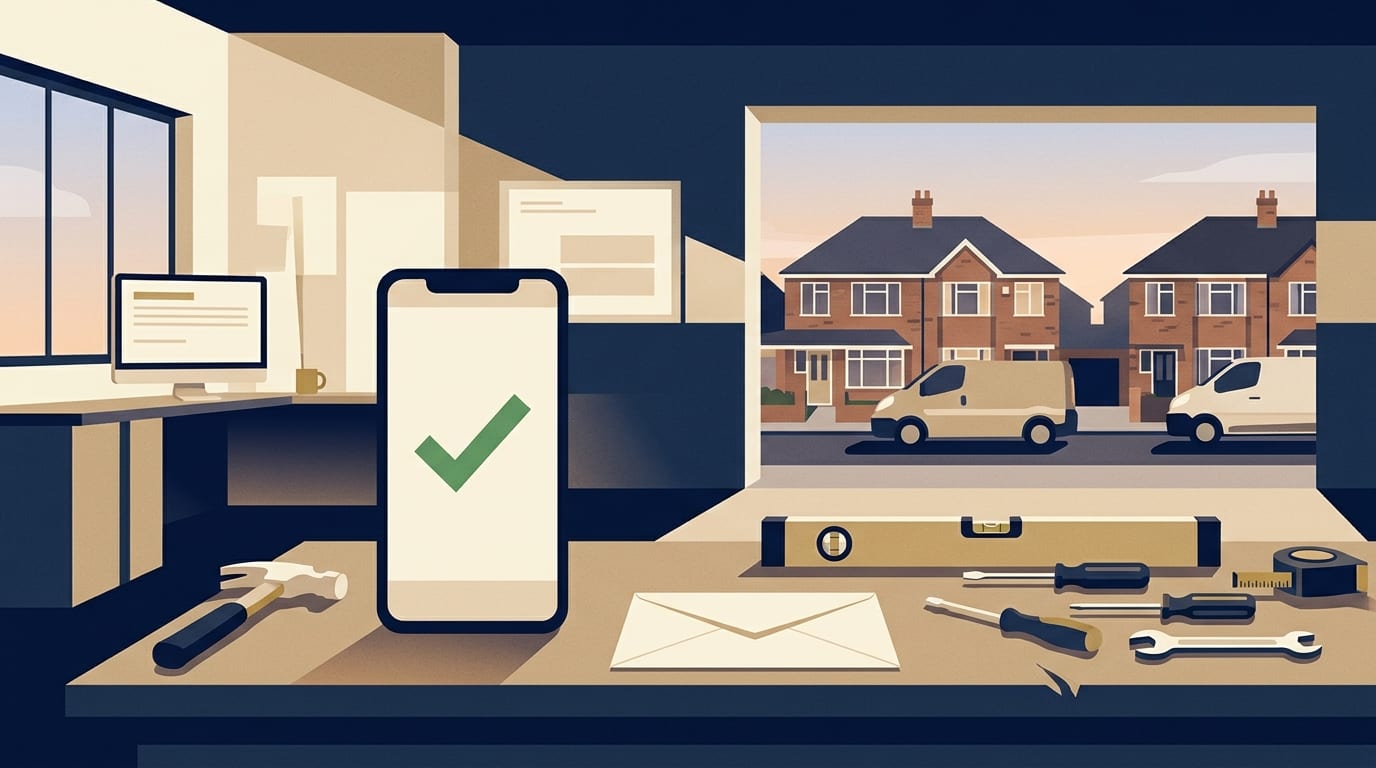

When you set up or claim a Google Business Profile for your building firm, Google may offer you a verification video to help confirm that you manage or represent the business. This must be an unedited, continuous recording of at least 30 seconds, filmed live on your phone directly through the Business Profile. Once it is uploaded, Google reviews the footage, which can take up to five working days.
What Google video verification asks for
Google automatically determines the verification methods available for your firm, and these cannot be changed. The options you are given depend on your business type, public information, region or opening hours. In some cases, you may need to verify with more than one method. If your business is eligible for video verification, Google recommends using that option.
To verify by video, you upload a recording that shows key information about your business. You must capture the footage live using your mobile device. Pre-recorded videos are not allowed, and you cannot record the footage offline and upload it later. Because the video must be a unique and complete recording with no breaks, Google says to plan the video before you record.
The recording must be at least 30 seconds long and uploaded directly from a mobile device through your Business Profile. Changes to your business information after you are approved may require re-verification, so it is important to get your details correct before you start.
Service area business or shop front
Your business type decides what the video must include. Many builders use Construction company as the primary category, with additional ones such as Home builder, Building firm, Building restoration service, Custom home builder or Carpenter, but the video rules depend on whether you are a Service Area Business, a shop front or a hybrid business.
Google defines a service area business as one that goes to customers or offers services but does not serve them at its business address, for example a locksmith or a plumber. Most builders work on customers' properties and do not serve customers at their own address, so they fit this definition. If you do not serve customers at your business location, Google says not to add your business address to your Business Profile. Most builders follow the service area business rules and should not show a home address.
A firm with an office or showroom that clients visit, with permanent signage and staff during opening hours, is a shop front or hybrid business. A shop front interacts with customers in person during opening hours at a physical location with permanent on-site signage. A hybrid business serves customers at its location and also visits or delivers to them. If your firm does not have a physical location for customers, list it as a service area business instead.
The three things the video must show
Whether you operate from a lock-up, a home office or a yard, your video must show three specific pieces of evidence to prove your firm is genuine. For a service area business, the first requirement is to show where the business operates. You need to record street signs, nearby landmarks or other identifiers at your business address, and avoid filming empty land or locations without clear markers. Google's tip is that if you run a service area business from your home, you can record landmarks and signs in your immediate neighbourhood to verify the address.
The second requirement for a service area business is proof that the business exists. This means showing the professional tools, equipment or products you use for work. Google's examples include specialised machinery, your workspace, business cards and branded apparel worn by employees or customers. You can point the camera at the building materials stored at your base, or the heavy equipment you keep there, with the machinery switched off.
The third requirement for a service area business is proof of management. Google asks you to record yourself performing a service or accessing business-only assets, and suggests unlocking a van that has your business branding. Unlocking your own van or tool store is the simplest choice, because you should not film on a client's site. You can also show business documents like a business permit, invoice or utility bill that matches the name on your Business Profile.
If you operate a shop front or hybrid business, your video must show the business location using street signs, building numbers, nearby businesses or familiar places. It must show proof the business exists by filming the shop front, showroom or signage, with the business name clearly printed on a permanent fixture such as a signboard, wall or window, matching the name on the profile. For proof of management, you must show things only an employee can access, such as a cash register, kitchen, storage room or point of sale system.
What to film shot by shot
You need to capture all three requirements in one continuous walk without pausing the camera. Plan and rehearse the route first, because the recording cannot be paused, edited or recorded in advance. Check that the business name on your vehicle and on any document matches the exact name on your profile.
Your business name on Google should reflect your real-world name, as used consistently on your shop front, website, stationery and as known to customers. Including unnecessary information in the business name is not permitted and could result in the suspension of your Business Profile. Google's examples of what a name must not include are marketing taglines, fully capitalised words, phone numbers or website URLs, opening hours, service or product information and location information.
Here is a planned route for a builder operating as a service area business to capture everything in one walk:
- Start at the nearest street sign or landmark to your base to show the operating area.
- Keep recording as you walk to a signwritten van or pickup.
- Unlock the vehicle and show the business name on it if it carries one.
- Show your cement mixer (switched off), laser level, SDS drills, the site board with the firm's name and your tool store.
- Point the camera at blocks, bricks, timber and bagged materials in your yard.
- Show branded workwear or hi-vis without filming anyone's face.
- Hold up a builders' merchant invoice or a utility bill in the business name, with bank details and account numbers covered.
What must stay out of the video
Google has strict rules about privacy and sensitive information. The video must not include sensitive information like bank account, tax or ID numbers. When you hold up your paperwork at the end of the video, make sure your bank details and account numbers are covered.
The recording must also not include private information about you or others, or other people's faces. Always point the camera at the clothing, equipment and vehicles rather than the people wearing or using them.
Never film on a client's site where the house, neighbours or workers' faces can be seen. You should also never film from scaffolding. Film at your own base, yard or office, where you can control what is in shot.
How to record and upload the video
Google changes these screens from time to time, and the names here are the ones Google's help pages used in November 2026. Make sure you are at your location and ready to walk the route before you begin.
- On your mobile device, go to your Business Profile, tap Get verified, enter your phone number if prompted and tap Next.
- Tap Business video, then Next, and read the video requirements.
- Allow access to your location, camera and microphone if you are asked.
- Tap Next, then Start recording.
- Use the on-screen buttons to start and stop recording as you complete your walk.
- Review the video to make sure it shows all the required information.
- Tap Try again if you need to re-record the footage, or tap Upload video to submit the recording.
If a video does not upload on the first try, Google's advice is to upload it again. If you cancel the upload process, both you and Google lose access to the video.
What to do if Google rejects the video
After you upload, Google reviews the video, which can take up to five working days. The result is either successful, where Google lets you know when your business is verified, or not successful. If it is not successful, the video did not meet all the requirements, and you can record a new one.
If you verify by video recording and get a Review issues notification, your video was not accepted. Select Review issues and follow the on-screen instructions. Google shares the reasons why the first video was not accepted so you can fix the problem.
Google's example issues are Business name not visible on shop front, No nearby area shown and Missing proof of authorisation to operate the business. The first is aimed at shop front videos, so a builder working from a van should make sure the business name is readable on the vehicle, the workwear and any document. For the second, the video needs a clear street sign or landmark near your base. The third calls for proof of management, such as unlocking a branded vehicle or showing a document that matches the profile name.
To send a new video, go to your Business Profile on your mobile device, tap Review issues, review the issues, record your video and upload it. The new video must include all the information shown in the first video plus all the missing information. If you are asked to re-upload, the video likely did not meet the requirements, so record a new one that does.
If the Get verified button appears on your Business Profile again, Google could not completely verify your business. Try to re-verify, and if the profile shows several verification options you can try other methods. Google's support team is available to help, but Google asks you to try the available verification methods first.
You can delete your verification video at any time, and if you do not, Google deletes it later. To delete it, go to your Business Profile on your mobile device, tap More at the top right, then Business Profile settings, then Advanced settings, and under Video uploads tap Delete videos.
Common questions
Can I record the video in advance?
No, you must capture the footage live. Pre-recorded videos are not allowed, and you cannot record it offline and upload it later. The video must be recorded and uploaded directly through your Business Profile on a mobile device.
How long does the review take?
After you upload the recording, Google checks the footage, which can take up to five working days. Google will then let you know if the verification was successful or if the video was not accepted.
What if my van has no signwriting?
If your vehicle does not carry branding, you can rely on other examples Google gives to prove the business exists and that you manage it. You can show the branded clothing, the professional tools you use for work, and the paperwork that matches the exact name on your profile.
Why will the video not upload?
If you are having trouble and the video fails to upload on the first try, upload it again. You might be asked to allow access to your location, camera and microphone, so check that you allowed it when the app asked.
Can I pick a different verification method?
Verification methods are automatically determined by Google and cannot be changed. If your profile shows several verification options you can try other methods, but Google recommends using video verification if your business is eligible for it.
Your next steps
To get your profile verified and ready for customers, follow this checklist:
- Check that your business name on Google exactly matches your real-world invoices and branding.
- Gather your paperwork, clothing and equipment in one place at your home or yard.
- Plan a walking route from the nearest street sign to your vehicle and materials.
- Open your Business Profile on your phone, tap Get verified, and record the continuous footage.
- Wait up to five working days for the review, and check the Review issues button if it fails.
Google decides whether to verify the profile. Once Google lets you know the business is verified, keep the name and categories as they are unless something really changes, because changes to your business info may require re-verification. To look at other builders by area, browse builders by area.
Find a top rated builder near you
3,554 builders across the UK, each ranked on their Google rating and the number of reviews behind it. Start with your county: